
Your new printer, installed and working
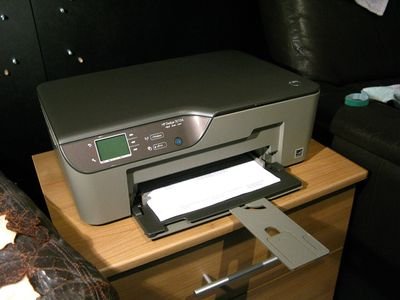

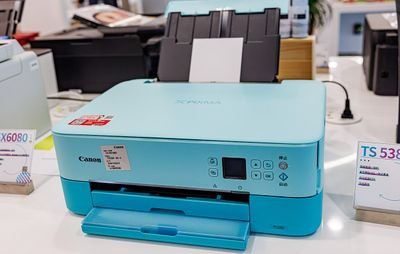

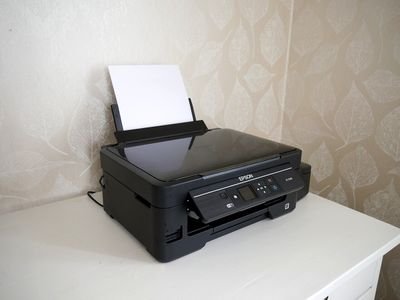

Setting up a new printer should be simple, but it rarely is: packing tape hidden inside the printer, ink cartridges or ink tanks to fit, Wi-Fi passwords, drivers from the wrong website, and a Windows PC that cannot find the printer. We take care of all of it in your home.
We install inkjet, laser and all-in-one (print, scan and copy) printers from all the major brands, including HP, Canon, Epson and Brother, on Windows 10 and Windows 11 desktop PCs and laptops.
What our on-site printer installation includes
1. Unpacking and preparing the printer
- We help you choose a good place for the printer: near a power socket, within reach of your Wi-Fi, on a stable surface with room for the paper trays.
- We remove all the packing materials, including the protective tape and cardboard inserts hidden inside the printer, which stop it working if they are left in.
- We fit the ink cartridges, fill the ink tanks (Epson EcoTank, Canon MegaTank, HP Smart Tank) or install the toner cartridge in a laser printer.
- We load the paper, switch the printer on, set the language, date and time, and run the printer's own print head alignment.
2. Connecting the printer: USB cable or Wi-Fi
- USB cable: the printer connects directly to one computer. Simple and very reliable. Many new printers do not include a USB cable in the box, so please check yours before our visit.
- Wi-Fi: the printer joins your home wireless network, so every computer, phone and tablet in the house can use it. We connect it using the printer's control panel, the WPS button on your router, or the manufacturer's set-up app, and make sure the printer keeps the same network address, so it does not keep showing as "offline".
3. Downloading the correct Windows drivers and software
- We download the latest drivers only from the manufacturer's official support website (HP, Canon, Epson or Brother). We never use third-party "driver download" sites, which often bundle adware and unwanted programs.
- We install the full driver package, so that every feature works: two-sided printing, scanning, and ink or toner level warnings.
- We leave out the trial offers, advertising and extra programs that you do not need.
4. Configuring the printer
- We set the default paper size (A4), paper type and print quality, and switch on two-sided (duplex) printing to save paper where the printer supports it.
- On all-in-one printers we set up scanning to your PC, and printing from your phone or tablet where available.
- We install any available firmware update for the printer.
5. Configuring Microsoft Windows
- We add the printer in Windows (Settings > Bluetooth & devices > Printers & scanners) and make it your default printer.
- We turn off "Let Windows manage my default printer", so Windows does not keep switching to a different printer.
- We remove old or duplicate printer entries that cause confusion.
- We check that you can print from the programs you use: Word, PDF files, your web browser and your photos.
6. Finally: the Windows printer test page
We always finish by printing a Windows printer test page (Printer properties > Print Test Page). It confirms that Windows, the driver and the printer are communicating correctly, and that the printer is correctly installed. The test page also lists the driver and connection details, so keep it with your printer's paperwork for future reference.
Price
Home PC printer installation: €50, plus the standard on-site visit fee.
We will come to your home and install your new printer. Request an on-site visit or see the price list (Gran Canaria).
On-site technical support service
An on-site technical support service provides clients with expert, hands-on assistance delivered directly at their physical location (home, office or business). This service is essential for complex issues that cannot be resolved remotely and require a technician to physically interact with the hardware, network or localized software environment.
At Computer Studio - ServTec.Info we provide an array of IT support and computer repair services. Whether you are looking for a trusted service provider, want to optimize your computer's performance, or wish to troubleshoot a specific issue, this guide will serve as a valuable resource.
Key offerings for the client
- Direct hardware repair & troubleshooting: diagnosing and fixing physical issues with computers, servers, printers and peripherals, including component replacement, cable management and internal maintenance.
- Network setup and configuration: installing, configuring and troubleshooting local area networks (LANs), Wi-Fi systems, routers and switches for secure and reliable connectivity.
- System installation & upgrades: performing complex installations of new operating systems, business software suites, or significant hardware upgrades that necessitate on-site presence and rigorous testing.
- Data backup and recovery: implementing and verifying local backup solutions or performing in-depth data recovery procedures on damaged drives or inaccessible systems.
- Personalized, hands-on training: tailored training sessions for employees or individuals on new equipment, software, or best practices within their actual working environment.
- Minimal downtime: by coming directly to the client, the service ensures a faster resolution for critical issues, significantly minimizing business disruption compared to off-site repair logistics.
This service offers convenience, rapid resolution and confidence that complex technical problems are being handled by qualified professionals directly where the technology resides. We specialize in virus, malware and spyware removal to restore your system's speed and security, and implement strong protection measures to prevent future infections and data loss. We also carry out memory upgrades and SSD replacements to speed up Windows booting, program loading, document scrolling and games.