How to speed up your desktop computer or laptop
Is your computer running slowly? Looking for ways to make your computer faster? You are not alone. Whether you want to speed up your PC for gaming, increase computer speed for work, or just make your laptop run faster, we have got you covered. Here are proven methods to optimize your computer's performance and get your system running like new again.
While you can make some upgrades to your laptop to boost its performance, there are many cost-effective ways to speed up your computer without spending a lot of money. These optimization techniques can significantly enhance your PC's speed and make your computer run faster overall.
Common causes of slow performance
Before diving into solutions, let's understand what might be slowing down your computer.
Storage: a full, cluttered or slow drive
- Full hard drive. We will clean up your hard drive: remove unnecessary files, uninstall unused programs, and use disk clean-up tools to free up clutter on your hard drive, increasing speed.
- Free up drive space. All hard drives have files and programs on them that have not been used in a long while or are unnecessary. Disk Cleanup will find applications and files that can be deleted. Disk Cleanup can remove downloaded program files and other unnecessary files to free up disk space.
- Fragmented hard drive. All hard drives contain many files and programs that have not been used in a while or are unnecessary. Disk Cleanup allows you to find which applications and files can be deleted from your computer, freeing up drive space for the programs you will use. Disk Cleanup can remove downloaded program files and other unnecessary files to free up disk space.
- Slow hard drive - no SSD. An older 5400 rpm hard drive, or no SSD, will always mean that your computer boots much slower than it could. A new SSD will give an average 62% speed increase in boot time. Also, older "Green" hard drives were programmed to spin down, and need time to spin up again.
Memory and programs running in the background
- Insufficient RAM. Adding more RAM (random access memory) allows your computer to handle more tasks simultaneously, reducing slowdowns.
- Too many background programs - uninstall unnecessary software. Your computer probably has several unused applications that are eating up system resources. Also, unwanted "application updaters" install silently, hog resources, waste space and slow down the computer. They sometimes pop up prompting you to update a program.
- Cluttered start-up menu. Too many program entries in the start-up menu will also waste precious RAM. Many items can be removed.
- Disable start-up programs. Some programs can be disabled completely, whilst others can be changed from automatic run to delayed run, thus speeding up the computer's boot time.
- Disable unnecessary visual effects. System-level animations and visual flourishes can slow down a computer and can be disabled to improve performance. They include things like window animations, transparency effects and smooth transitions that consume system resources.
Malware, software conflicts, updates and drivers
- Virus/malware infections. Malware and viruses will duplicate on the computer's SSD and hard drive, and in the RAM memory, and slow down the computer. See our virus, malware and spyware removal service.
- Software conflicts. Conflicts happen when two or more programs or system components interfere with each other, leading to performance issues, crashes or instability. These conflicts often arise from competing for the same system resources, like memory or CPU, or when they are simply incompatible, causing them to fail to work together correctly.
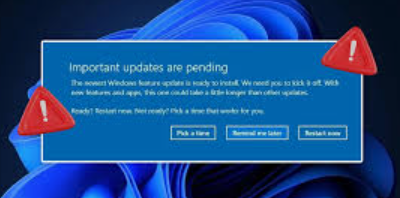
- Pending system updates. If you have pending Windows system updates, or a corrupted Windows "KB" update preventing system updates from completing or installing, this will cause your computer to go slow or crash. Resolving this problem is complicated.
- Outdated device drivers. Outdated device drivers can cause performance issues and security vulnerabilities. Many SMBus, USB peripheral and Wi-Fi devices will disconnect if the drivers are outdated.
Outdated hardware
You know it is time to upgrade your hardware when you run out of memory, or when it does not matter what you do to optimise the computer, it still goes slow. Maybe your favourite game keeps stuttering. Your spreadsheet or Word document runs out of paging memory (RAM), causing a "tearing" effect on screen, or a database cannot index. Your hard drive gives out-of-space warnings.
Hardware solutions to speed up your computer
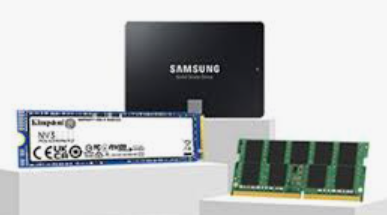
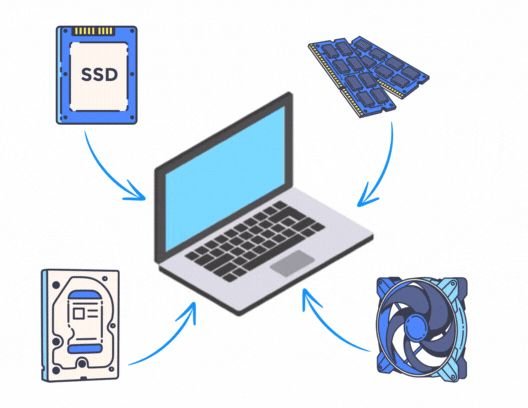
The most effective way to increase PC speed is through strategic hardware upgrades. To make your computer faster, consider these proven solutions:
- Memory upgrade: a RAM upgrade kit is one of the most cost-effective ways to improve computer speed, especially for multitasking. Adding more RAM is particularly effective for speeding up computers running Windows 10, 11 and above.
- SSD storage solution: an internal solid-state drive (SSD) can dramatically improve computer and laptop performance and boot times. Replacing the hard drive with an SSD has been shown to increase the loading speed of a slow computer by 62.88%.
- Faster internal hard drive storage solution: a faster, newer internal hard drive (HD) can also improve computer and laptop performance, data access times and boot times.
We will come to your home and provide an on-site service that quickly identifies how to speed up your desktop computer or laptop. Request an on-site visit or see the price list.
On-site technical support service
An on-site technical support service provides clients with expert, hands-on assistance delivered directly at their physical location (home, office or business). This service is essential for complex issues that cannot be resolved remotely and require a technician to physically interact with the hardware, network or localized software environment.
At Computer Studio - ServTec.Info we provide an array of IT support and computer repair services. Whether you are looking for a trusted service provider, want to optimize your computer's performance, or wish to troubleshoot a specific issue, this guide will serve as a valuable resource.
Key offerings for the client
- Direct hardware repair & troubleshooting: diagnosing and fixing physical issues with computers, servers, printers and peripherals, including component replacement, cable management and internal maintenance.
- Network setup and configuration: installing, configuring and troubleshooting local area networks (LANs), Wi-Fi systems, routers and switches for secure and reliable connectivity.
- System installation & upgrades: performing complex installations of new operating systems, business software suites, or significant hardware upgrades that necessitate on-site presence and rigorous testing.
- Data backup and recovery: implementing and verifying local backup solutions or performing in-depth data recovery procedures on damaged drives or inaccessible systems.
- Personalized, hands-on training: tailored training sessions for employees or individuals on new equipment, software, or best practices within their actual working environment.
- Minimal downtime: by coming directly to the client, the service ensures a faster resolution for critical issues, significantly minimizing business disruption compared to off-site repair logistics.
This service offers convenience, rapid resolution and confidence that complex technical problems are being handled by qualified professionals directly where the technology resides. We specialize in virus, malware and spyware removal to restore your system's speed and security, and implement strong protection measures to prevent future infections and data loss. We also carry out memory upgrades and SSD replacements to speed up Windows booting, program loading, document scrolling and games.